Managing Applications and API Credentials
1. Overview
1.1 What You Can Do in Apps and Key Management
In Apps and Key Management (the Apps area of the Developer Console), you can:
- View all applications in your organization.
- Create new apps with connected APIs and initial keys.
- Search and sort the apps list.
- Open app details to manage access keys.
- Generate additional keys with scoped API access.
- Rotate keys with traffic monitoring.
- Disable or revoke credentials.
- Review connected APIs.
- Delete applications when they are no longer needed.
2. Access and Prerequisites
To use Apps and Key Management, users must sign in to the Developer Console, belong to an organization that is set up to use Apps, and have the permissions needed for the action they want to perform.
2.1 Opening Apps and Key Management
- Sign in to the Developer Console.
- Select Apps under MANAGEMENT in the sidebar.
- The apps list loads for your current organization and selected API environment.
All apps and keys shown are scoped to the current organization. Data also respects the selected API environment (such as Staging or Production) shown in the header. Switching environments updates the apps and credentials available in the current view.
2.2 Required Permissions
| Permission | Scope | What it allows |
|---|---|---|
| View apps | apps:read | Open the Apps list and app detail pages |
| Create apps | apps:write | Access the Create App wizard and create new applications |
| Delete apps | apps:delete | Delete an application and all associated keys |
| Create keys | keys:create | Generate new keys and rotate existing keys |
| Manage keys | keys:delete | Disable, revoke, or delete keys |
If a button or action is unavailable, your role may not include the required permission. Contact your organization administrator to request access.
3. Apps List
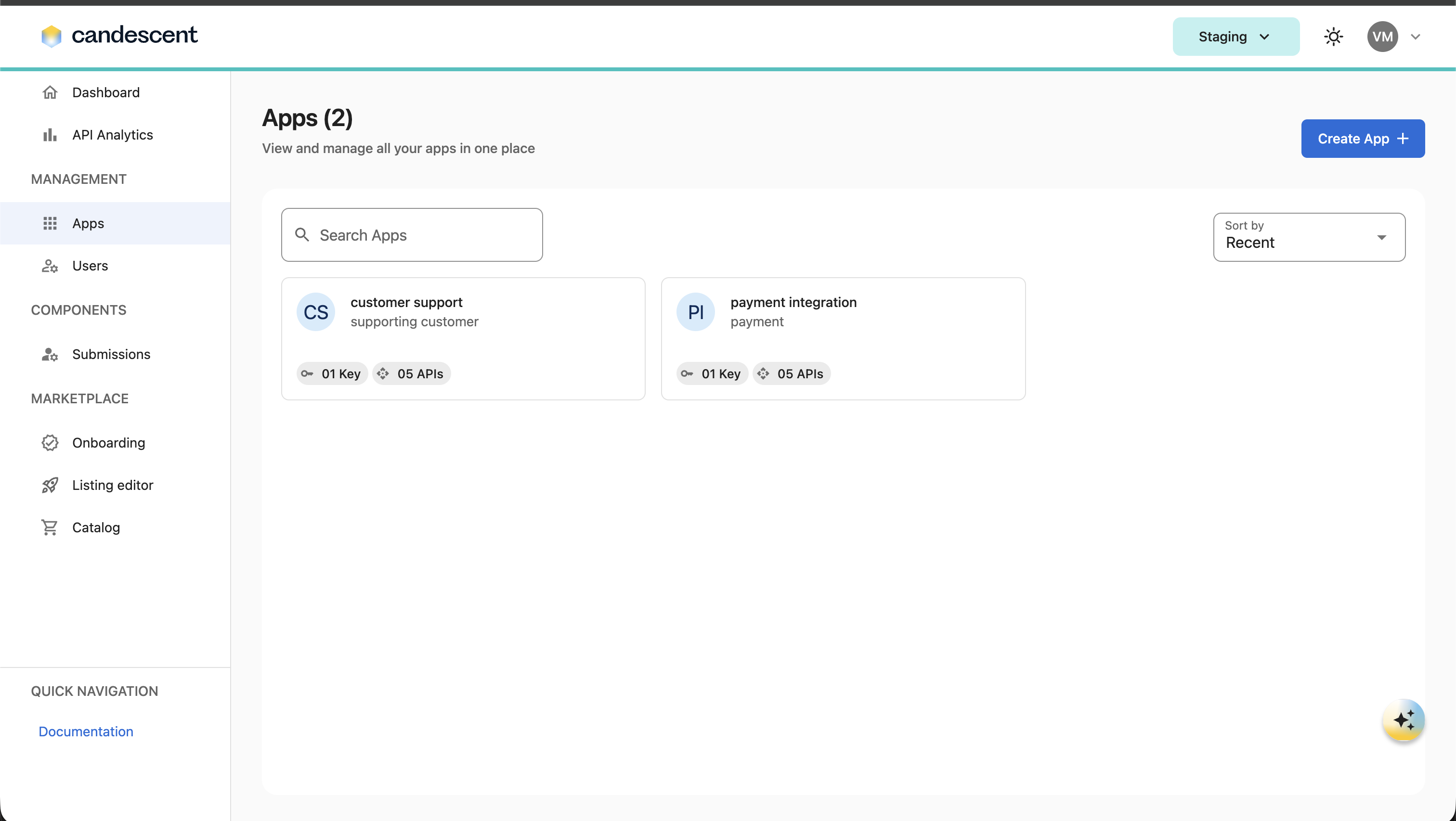
The Apps page is the starting point for application management. It shows all applications in the current organization as cards with key and API counts.
3.1 What You See on Each App Card
- App name and description — the display name and short description of the application.
- Key count — the number of access keys associated with the app.
- API count — the number of connected APIs.
- Expiring keys indicator — shown when one or more keys are approaching expiry.
3.2 Search and Sort
Use Search Apps to filter by app name, title, or description.
Sort options include:
- Recent — most recently updated apps first.
- Name (A to Z) — alphabetical ascending.
- Name (Z to A) — alphabetical descending.
The list loads additional cards as you scroll.
3.3 Open an App
Click an app card to open its detail page at /apps/{app-id}.
3.4 Empty State
If your organization has no apps yet, the page shows an empty state with guidance and a Create App button (when you have create permission).
4. Creating an App
The Create App wizard guides you through onboarding a new application in three steps: App Basics, Select API, and Key Setup.
4.1 Create an App
- From the Apps list, click Create App.
- Complete each wizard step and click Next.
- On the final step, click Create App.
- When creation succeeds, review and securely store the one-time credentials shown in the ready dialog.
- Close the dialog to return to the Apps list.
4.2 App Basics
- App name — required, up to 30 characters. Use a unique, human-friendly name.
- Description — required, up to 300 characters. Briefly describe what the app does.
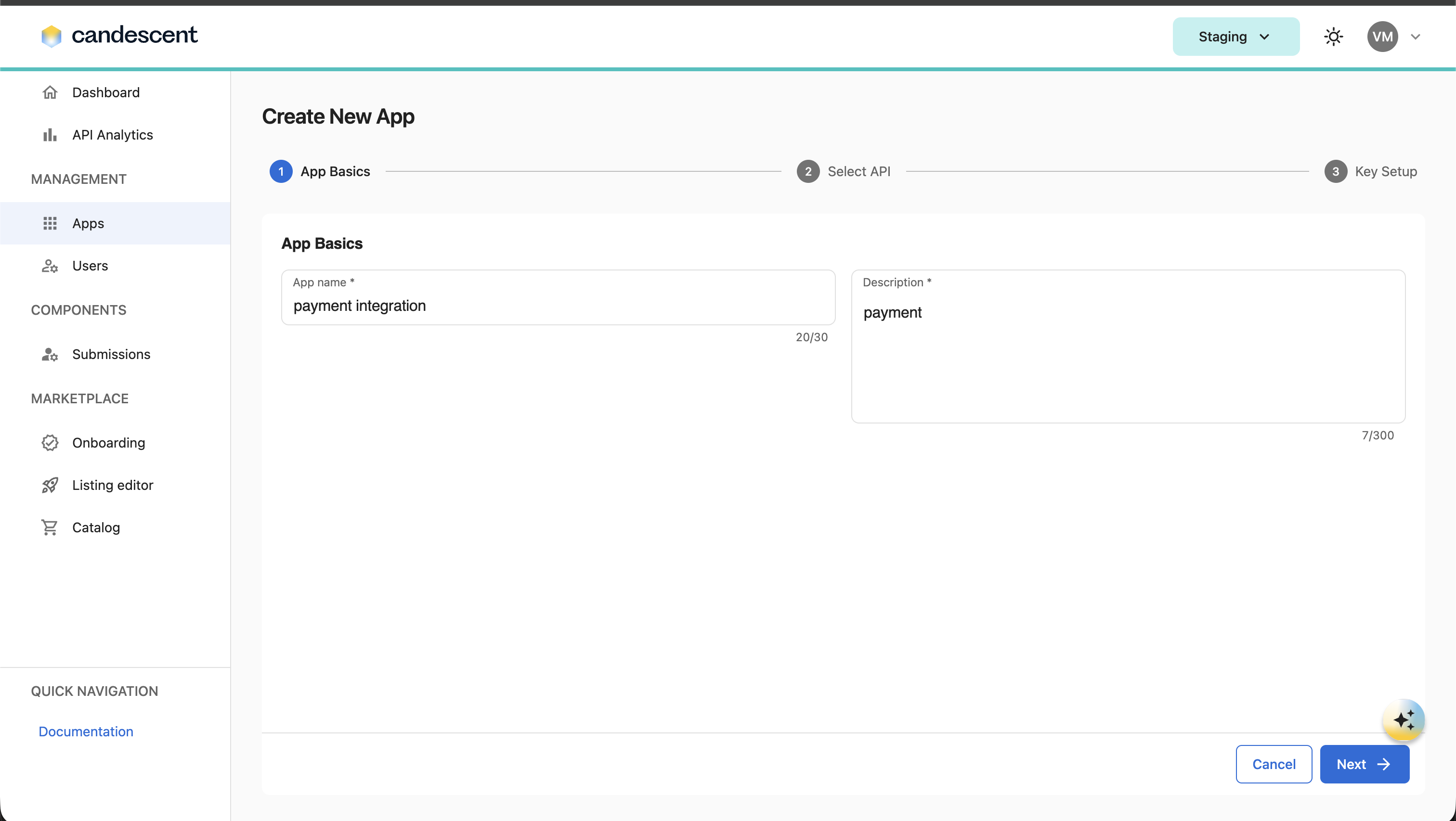
App names cannot include special characters such as ~, `, <, >, |, %, ^, &, *, {, }, [, ], :, or ;.
4.3 Select API
Choose which APIs the app should connect to from the product catalog.
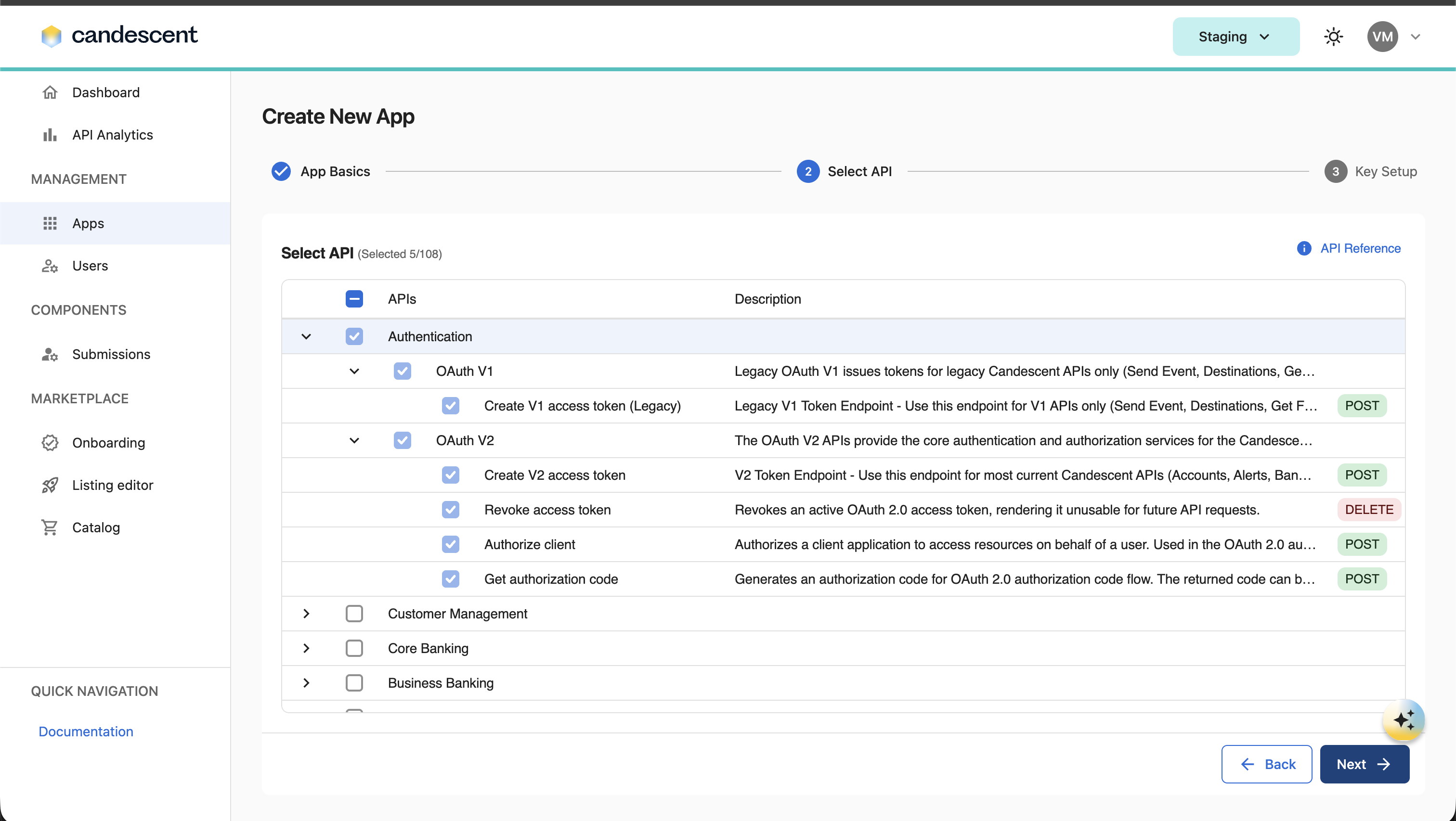
- The page shows how many APIs are selected out of the total available, for example (Selected 5/10).
- Authentication APIs are required and are selected automatically.
- Expand API categories and subcategories to review available products before selecting them.
4.4 Key Setup
Configure the first access key for the app.
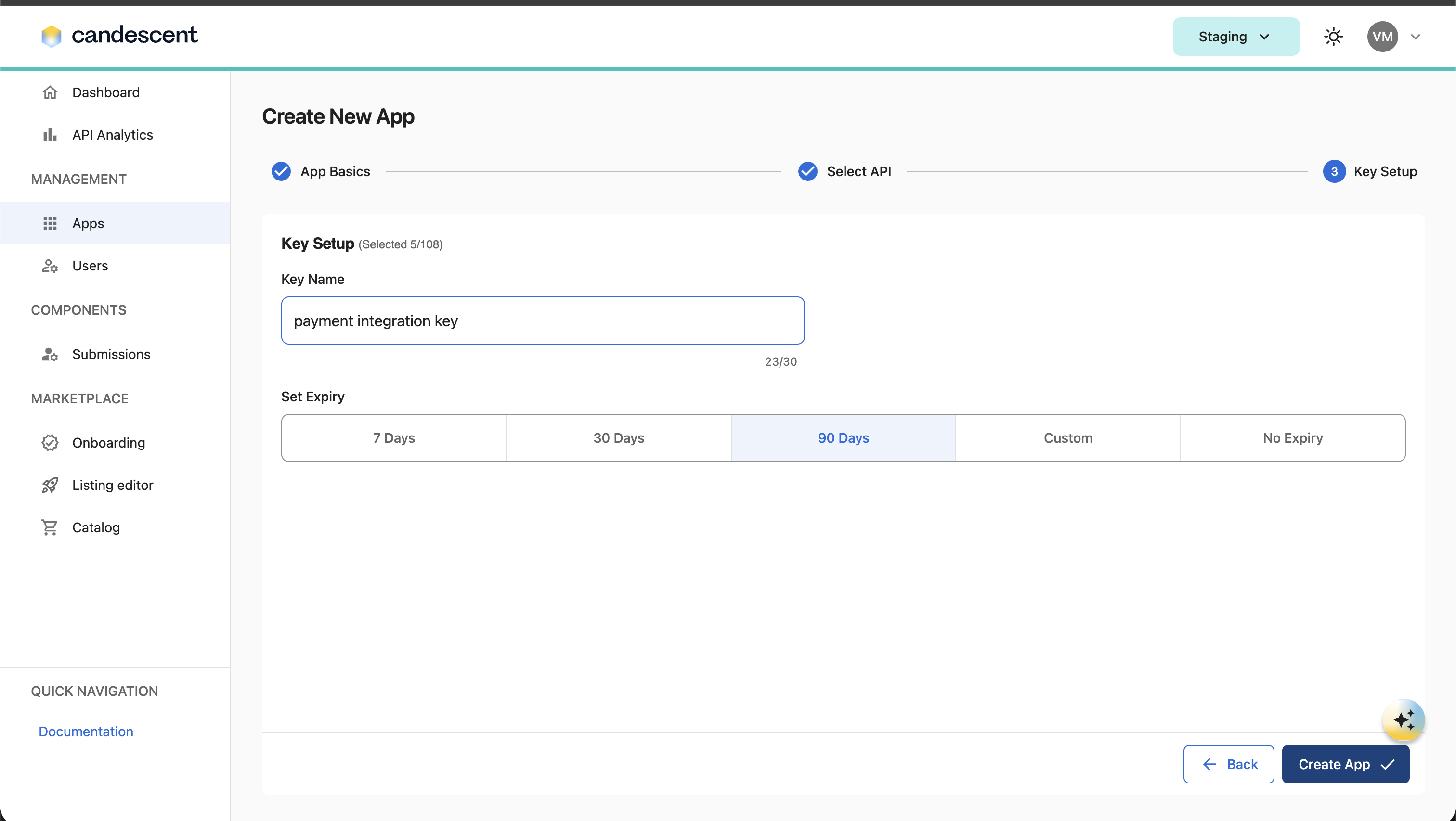
- Key Name — label for the initial credential.
- Set Expiry — choose from 7 Days, 30 Days, 90 Days, Custom, or No Expiry.
Environment defaults:
- In Staging, expiry defaults to 90 Days.
- In Production, expiry defaults to No Expiry.
4.5 One-time Credential Disclosure
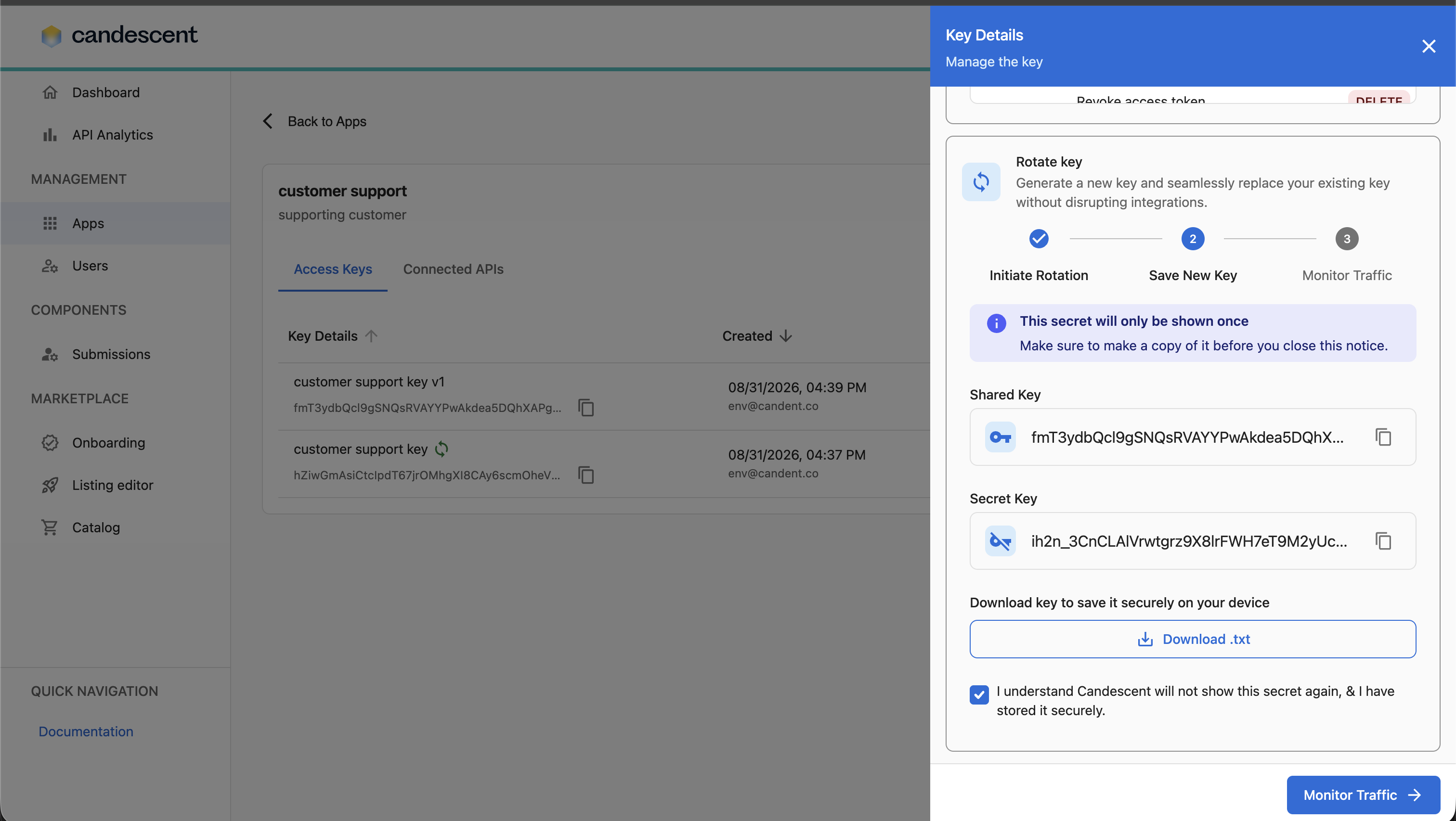
After app creation, Candescent shows the shared key and secret key once. Copy or download them immediately and store them securely.
Candescent will not show the secret again. You must acknowledge that you have stored the secret before closing the dialog.
Each application can have multiple API credential pairs. Each credential pair consists of:
- Shared Key: The client identifier sent with API requests (sometimes called the shared key).
- Secret Key: Private key used for API authentication (keep secure). This is only visible when a new key is generated.
- Secret keys are shown only once when generated.
- Store keys in a password manager or secure vault — never in source control or shared channels.
- Use different keys for development, staging, and production.
- Rotate keys regularly (recommended every 90 days).
5. App Detail and Credentials
The app detail page shows application information and credential management tools.
5.1 App Summary
The header includes:
- Back to Apps navigation.
- App name, description, and environment context.
- Delete App (when you have delete permission).
5.2 Credentials Tabs
The credentials section has two tabs:
- Access Keys — manage API keys and lifecycle actions.
- Connected APIs — review APIs linked to the app for the current environment.
6. Managing Access Keys
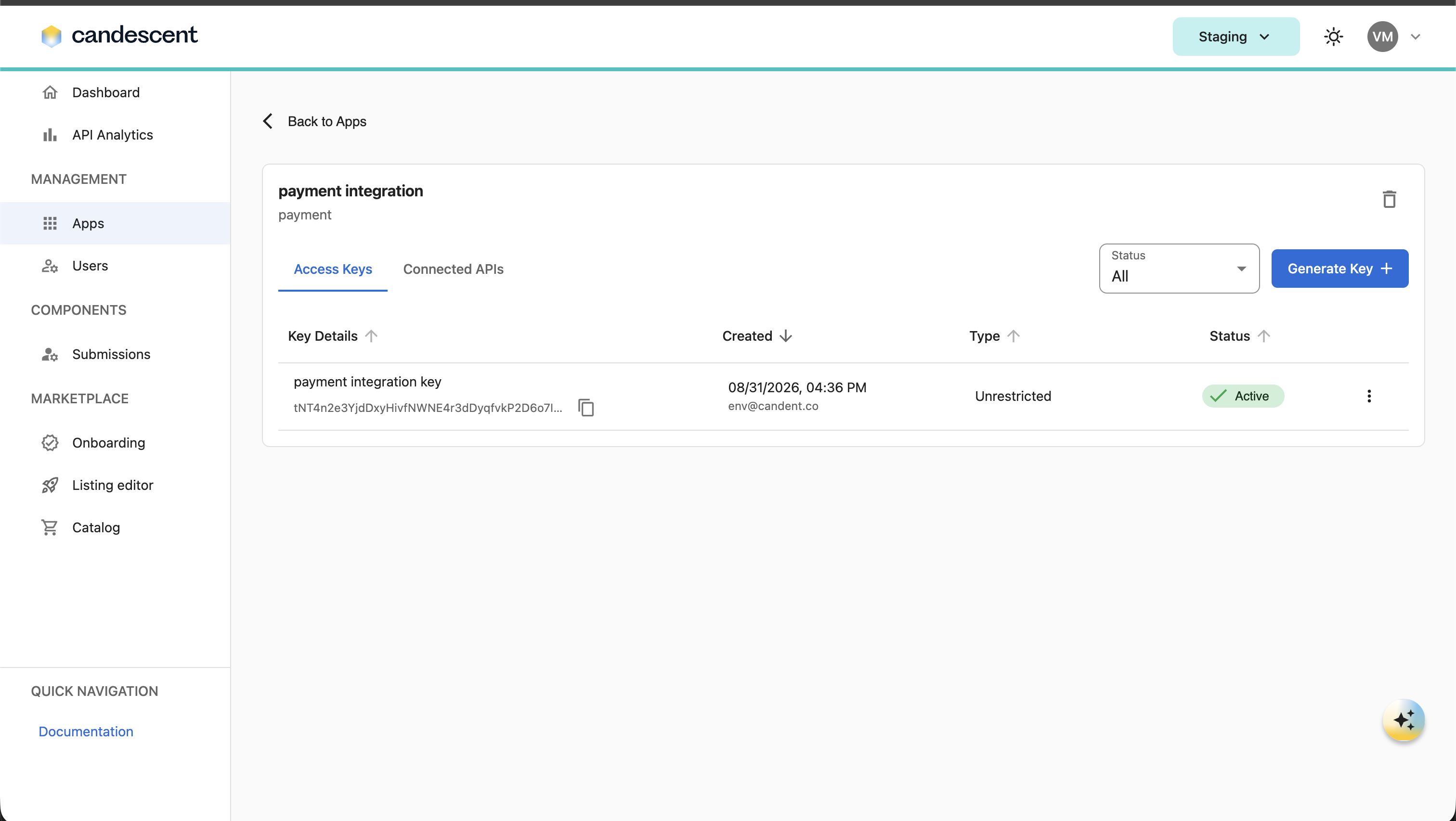
The Access Keys tab is the main place to review, filter, sort, and act on credentials.
6.1 Access Keys Table
Each row shows:
- Key Details — key name and shared key (with copy action).
- Created — creation date.
- Type — Unrestricted (full API access) or Restricted (selected APIs only).
- Expiry / Days Left — expiry date and remaining days, or No expiry.
- Status — Active, Expiring, Expired, Disabled, or Revoked.
6.2 Filter by Status
Use the status filter to narrow the table:
- Active
- Expiring
- Expired
- Disabled
- Revoked
- All
You can select one or more statuses.
6.3 Sort Keys
Column headers support ascending and descending sort where available.
6.4 Row Actions
Open the row actions menu to:
- View details
- Rotate key (requires key create permission)
- Disable or Enable
- Revoke
- Delete
- Key adoption % (during rotation)
7. Generating a New Key
Generate an additional key when you need a separate credential for a new integration, environment, or rotation workflow.
7.1 When to Generate
- Setting up a new application.
- Creating keys for different environments (development, staging, production).
- Rotating keys for security compliance.
- Replacing compromised keys.
7.2 To Generate an Additional Key
- Open the Access Keys tab.
- Click Generate Key.
- In the drawer, enter a Key Name.
- Choose Key type — Unrestricted (full access to all APIs) or Restricted (access to selected APIs only).
- For restricted keys, select API scopes from the product catalog.
- Set expiry by choosing 7 Days, 30 Days, 90 Days, Custom, or No Expiry.
- Click Generate.
- Securely store the one-time shared and secret keys shown in the credentials dialog.
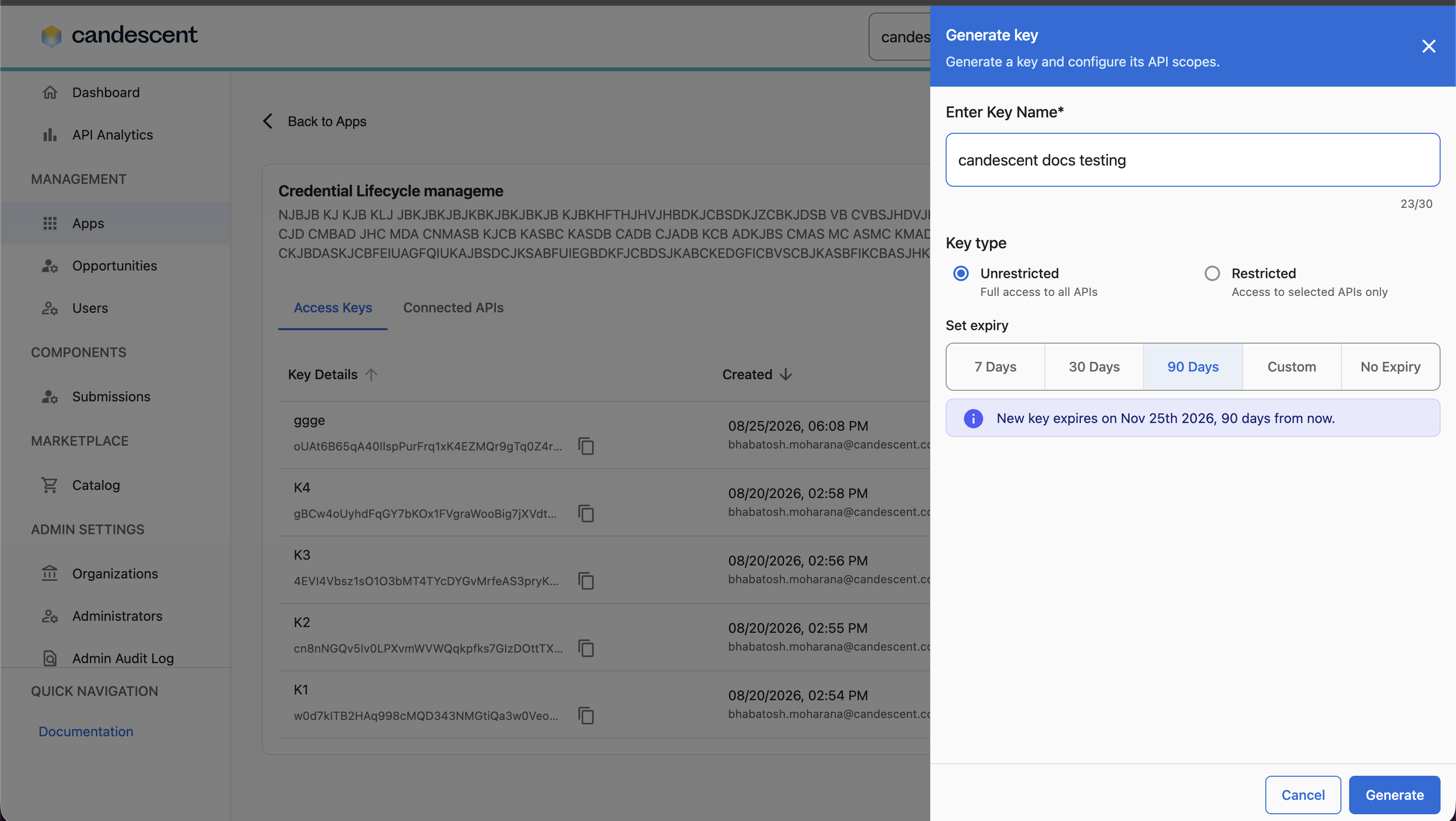
Use restricted keys when an integration only needs a subset of APIs. This limits exposure if a credential is compromised.
8. Rotating a Key
Key rotation lets you replace a credential without immediately breaking existing integrations. Both old and new keys can remain active until you retire the old one.
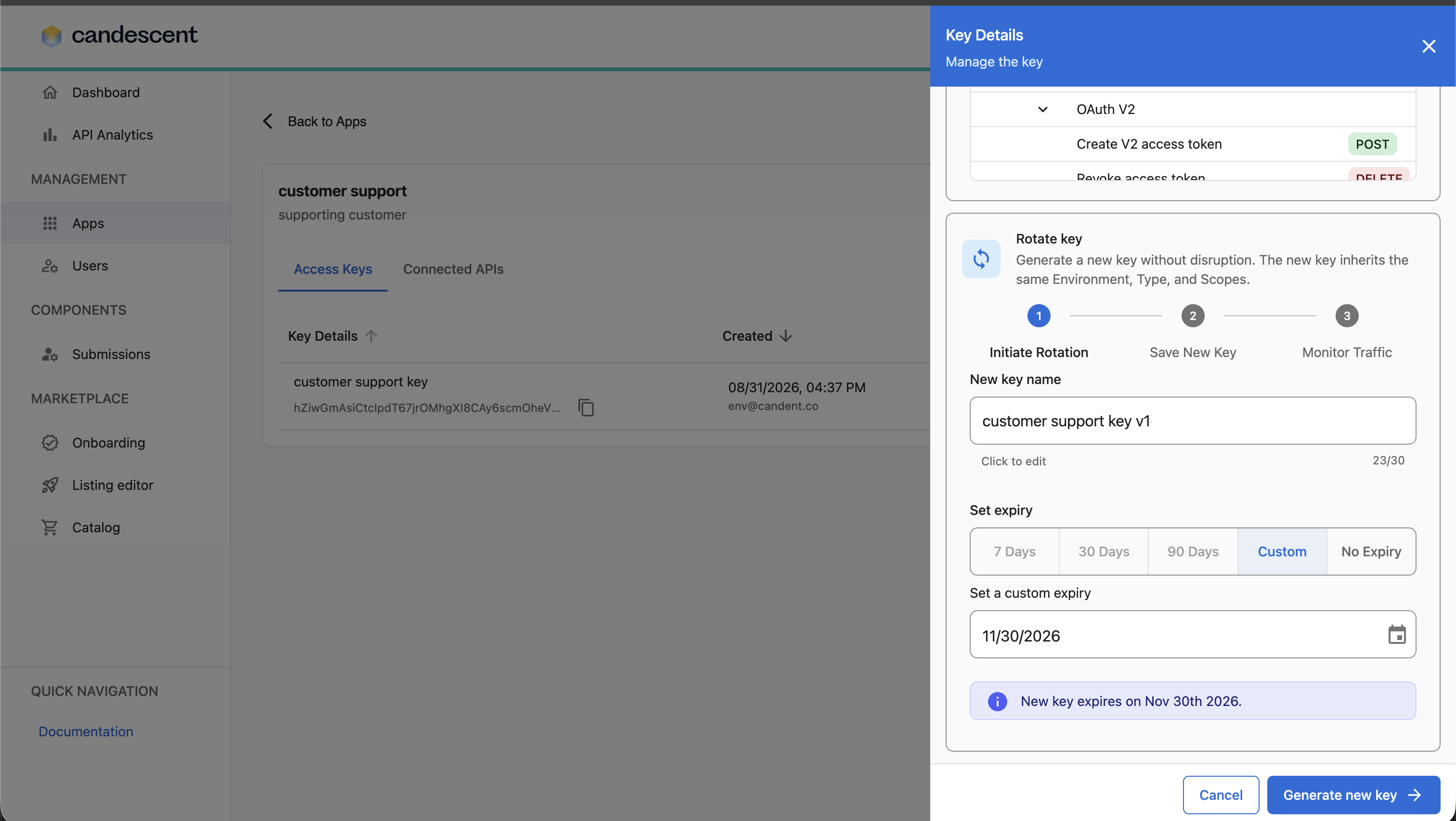
8.1 Rotation Steps
- From the key row menu or key details view, click Rotate key.
- Initiate Rotation — configure the new key name and expiry.
- Save New Key — copy or download the new credentials and acknowledge secure storage.
- Monitor Traffic — track adoption of the new key and optionally set a notification threshold.
- Click Finish when migration is complete, or Revoke old key when you are ready to retire the previous credential.
8.2 Traffic Monitoring During Rotation
The traffic monitoring drawer shows:
- Old key and new key traffic.
- New key adoption percentage.
- Adoption over time chart.
- Notify at threshold — alert when new key traffic reaches a chosen percentage.
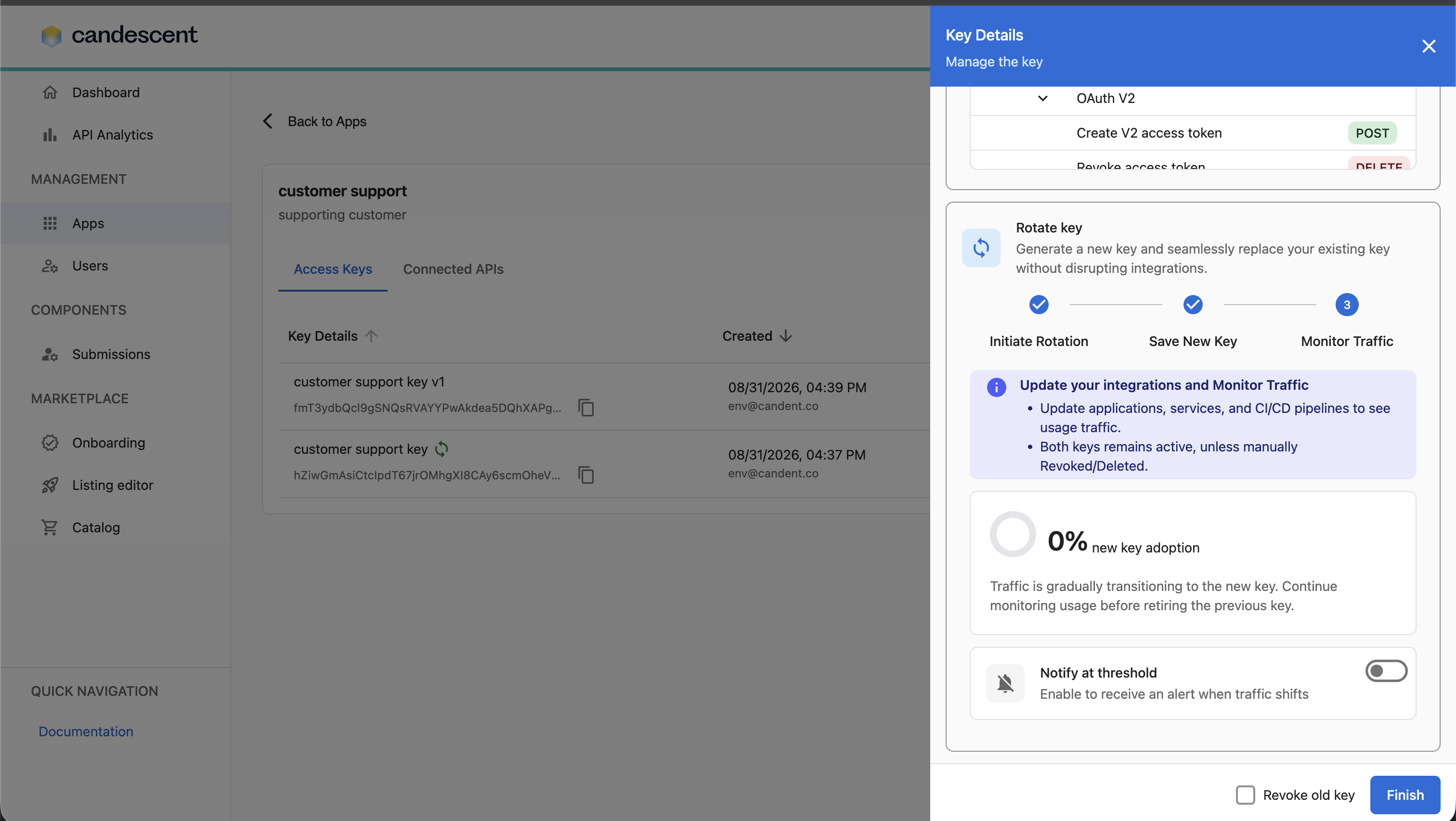
Use this view to confirm integrations have moved to the new key before revoking the old one.
During rotation, both keys remain active unless you manually revoke or delete the old key.
9. Other Key Lifecycle Actions
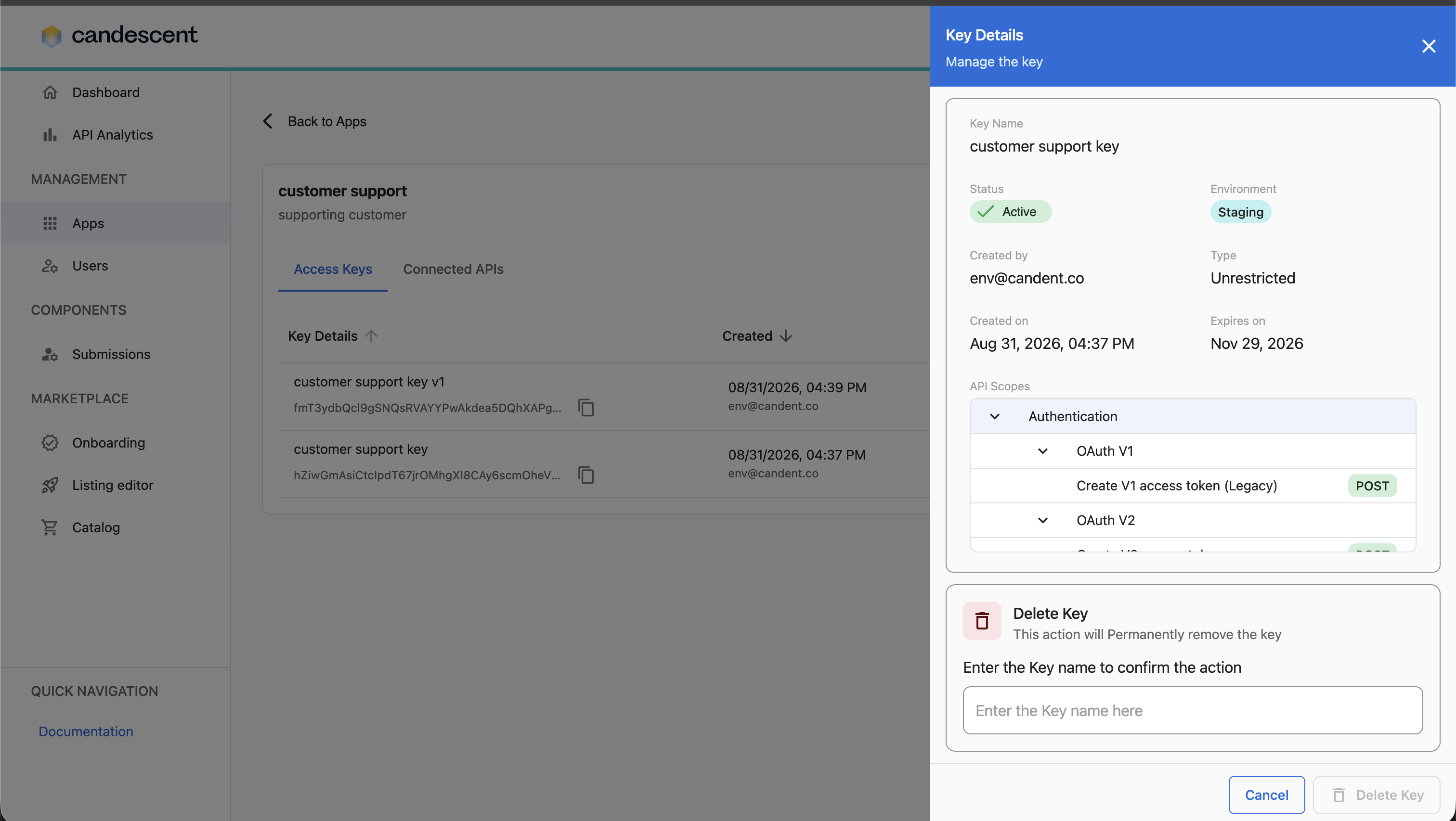
9.1 View Key Details
Open View details to see:
- Key name, status, environment, and type
- Created on and expires on
- API scopes (for restricted keys)
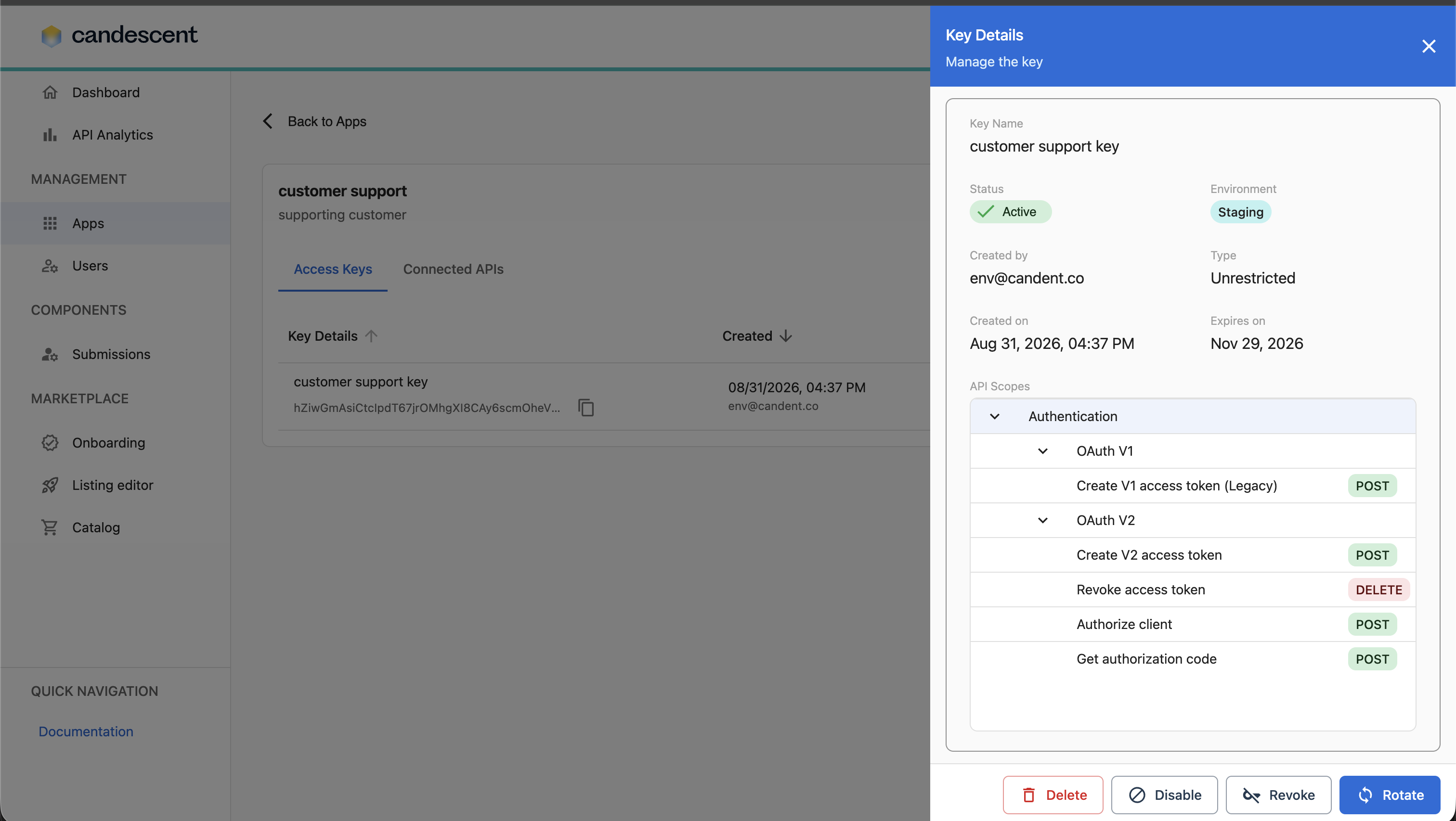
From this view you can rotate, disable, enable, revoke or delete.
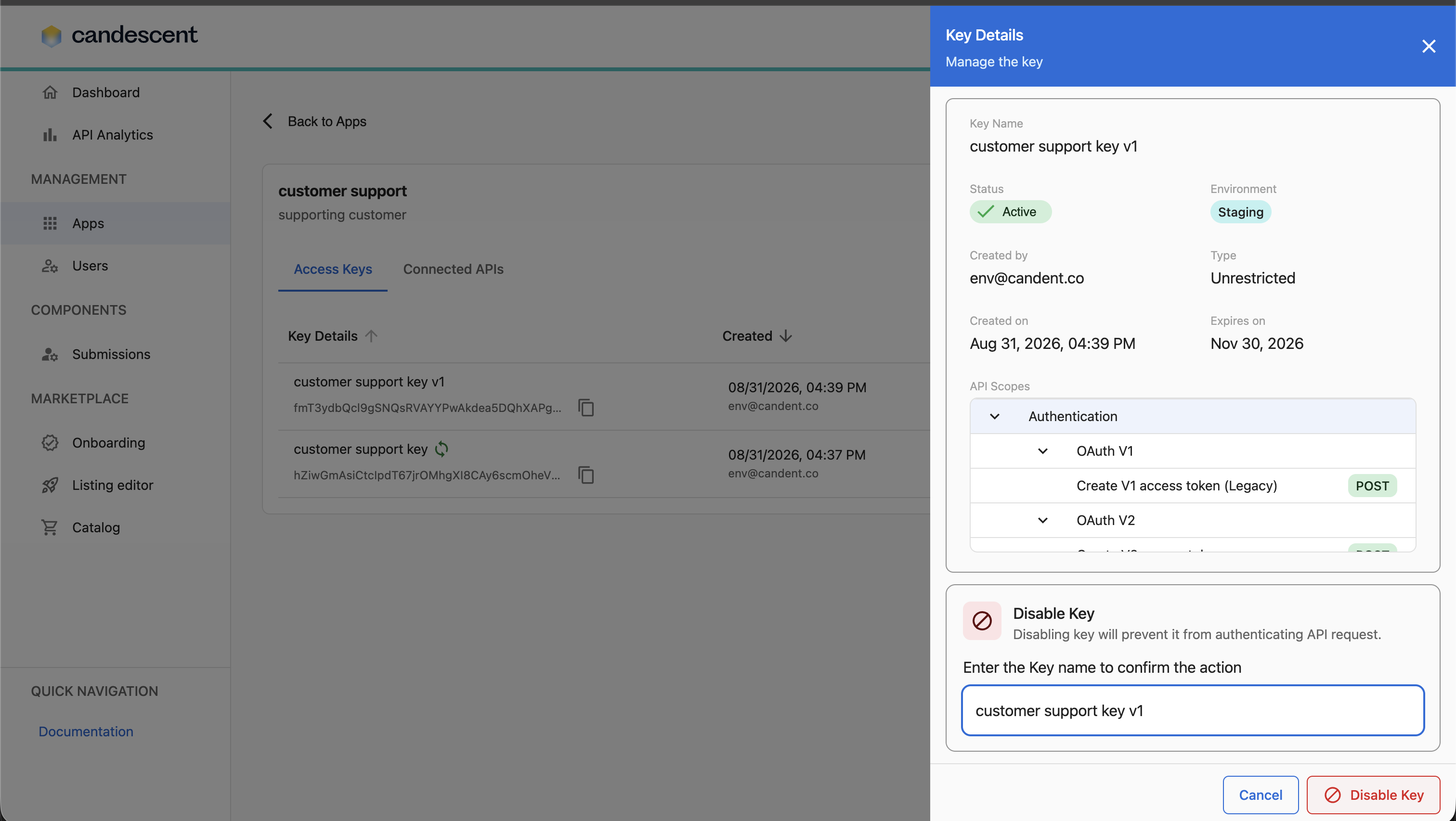
9.2 Disable a Key
Disabling prevents the key from authenticating API requests. You must enter the key name to confirm.
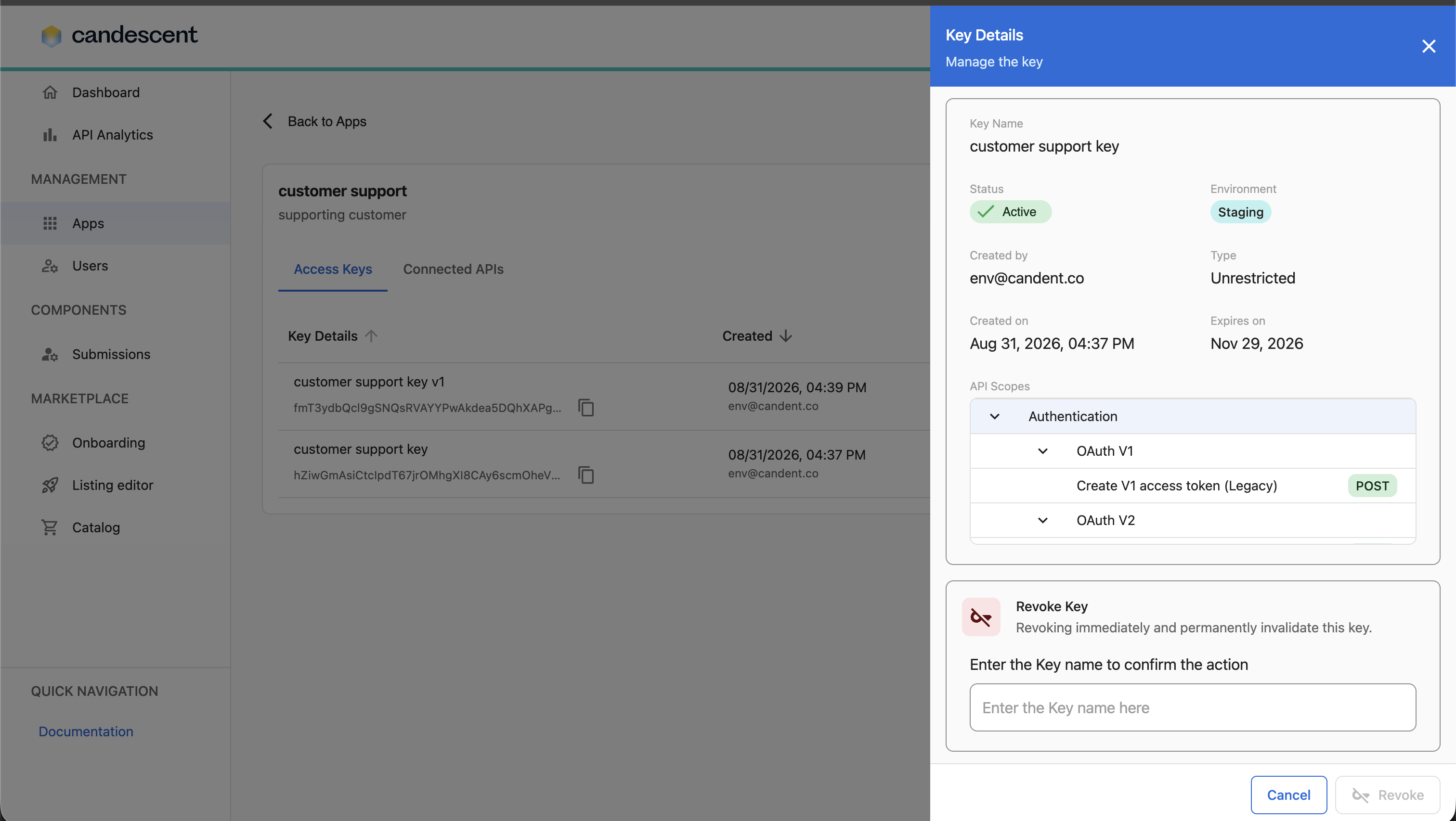
9.3 Revoke a Key
Revoking immediately and permanently invalidates the key. You must enter the key name to confirm.
9.4 Delete a Key
Deleting permanently removes the key. You must enter the key name to confirm.
10. Deleting an Application
To delete an app:
- Open the app detail page.
- Click Delete App.
- Review the warning if the app has active keys.
- Enter the app name to confirm.
- Confirm deletion.
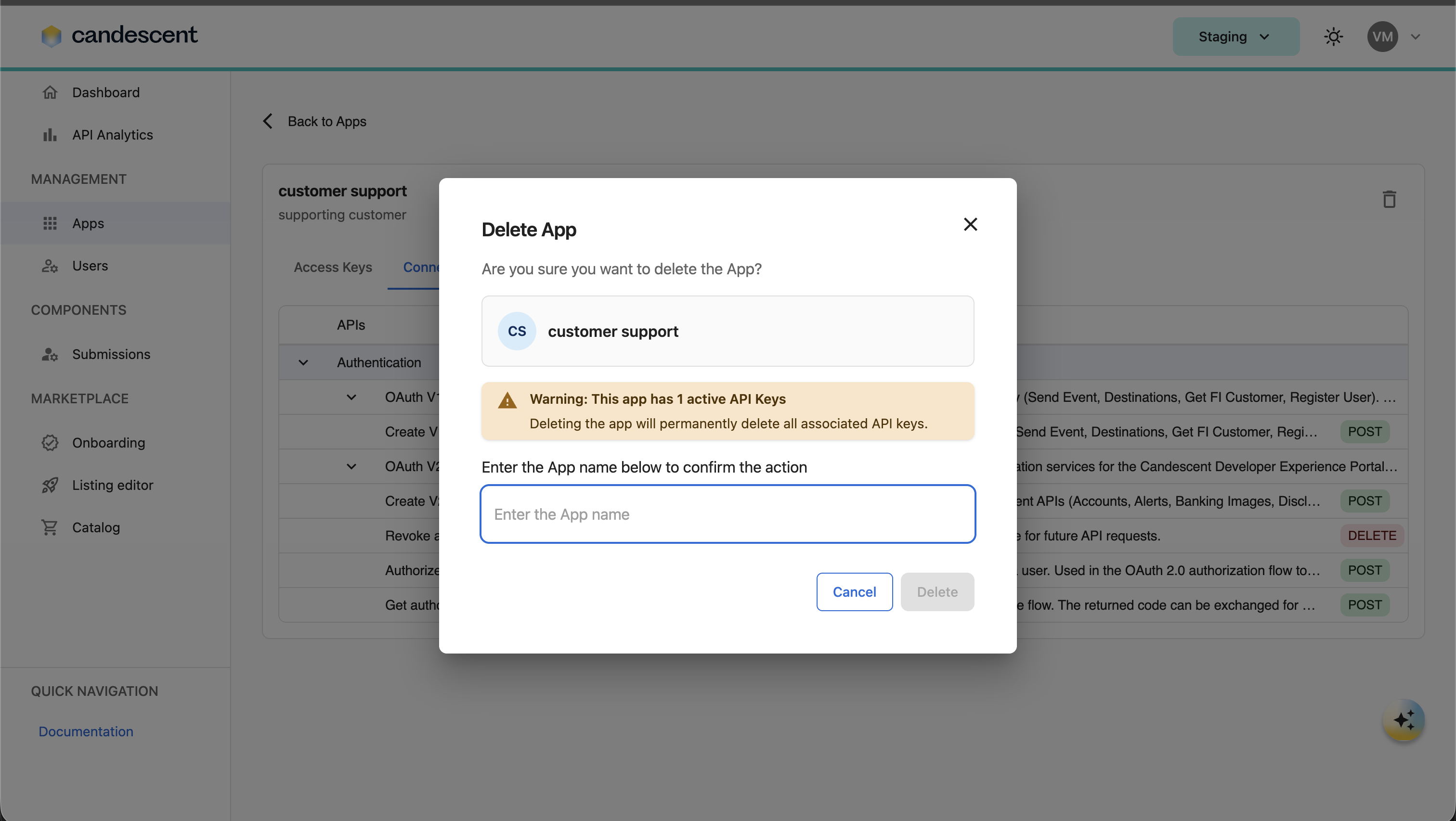
Deleting an app permanently removes the application and all associated API keys.
11. Connected APIs
The Connected APIs tab lists APIs linked to the app for the current environment.
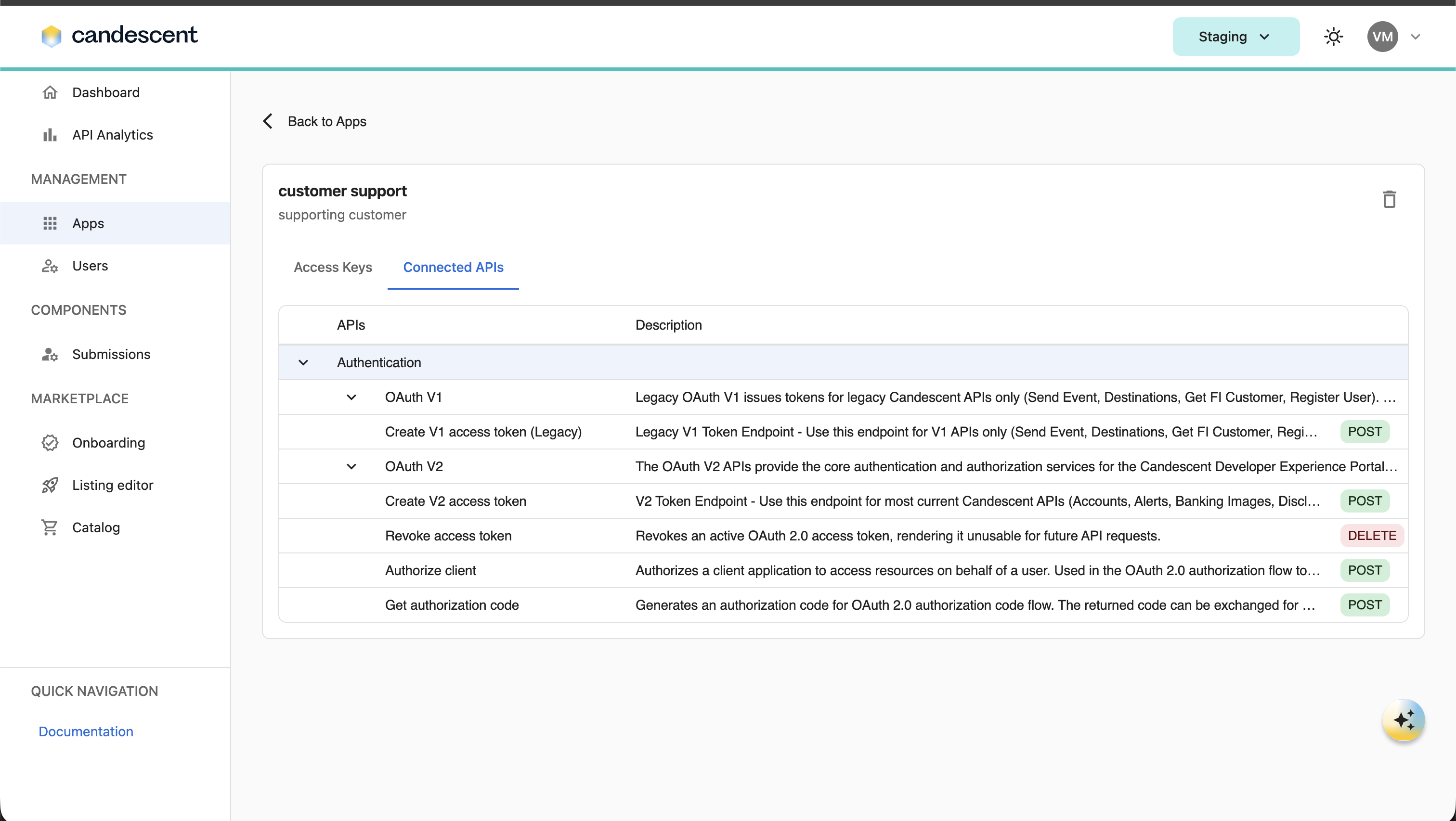
Use this tab to verify which API products are available to the application without opening each key individually. If every API product is already linked to the app, the tab may show a message that no additional APIs need to be connected.
12. Best Practices
- Environment separation — Use different keys for development, staging, and production.
- Documentation — Keep track of which keys are used in which applications.
- Regular rotation — Rotate keys periodically (recommended every 90 days).
- Secure storage — Store keys in environment variables or secure configuration files.
- Access control — Limit who has access to production keys.
13. Troubleshooting
| Issue | What it means | What to try |
|---|---|---|
| Apps list is empty | No apps exist for the current organization or environment. | Confirm the correct API environment in the header. Create a new app if you have write access. |
| Could not load apps | The apps list failed to load. | Click Try again. Refresh the page. Verify connectivity and sign in again. |
| Create App button unavailable | Your role does not include app write permission. | Request apps:write from your administrator. |
| Generate Key unavailable | Your role does not include key create permission. | Request keys:create from your administrator. |
| Application not found | The app ID in the URL does not match an app in the current scope. | Return to Apps and open the app from the list. Verify organization and environment. |
| Secret key no longer visible | Secrets are shown only once at creation or generation. | Generate a new key or rotate the existing key. Update integrations with the new credential. |
| Rotation failed | The replacement key could not be created. | The original credential remains active. Retry rotation or contact support if the issue persists. |
| Traffic monitoring not loading | Adoption data is unavailable or still collecting. | Refresh the monitoring drawer. Confirm integrations are sending traffic with the new key. |
| Key action disabled | Status or permissions prevent the action. | Check key status and your keys:create / keys:delete permissions. |
14. Quick Reference
| Action | Navigation |
|---|---|
| View all apps | Sidebar → Apps |
| Create app | Apps → Create App |
| Search apps | Apps → Search Apps |
| Open app detail | Apps → select app card |
| View access keys | App detail → Access Keys |
| Generate key | App detail → Access Keys → Generate Key |
| Rotate key | App detail → Access Keys → row menu → Rotate key |
| Monitor rotation traffic | Rotate flow → Monitor Traffic or Key adoption % |
| View connected APIs | App detail → Connected APIs |
| Delete app | App detail → Delete App |
15. Frequently Asked Questions
15.1 What environment do apps and keys belong to?
Apps and credentials are scoped to your current organization and the API environment selected in the Developer Console header.
15.2 Can I recover a secret key after closing the dialog?
No. Candescent shows secret keys only once. Generate a new key or rotate the credential if you did not store it securely.
15.3 What happens to the old key during rotation?
Both old and new keys remain active until you revoke or delete the old key. Use traffic monitoring to confirm adoption before retiring the previous credential.
15.4 Why can I see an app but not create or delete it?
Viewing apps requires apps:read. Creating and deleting require apps:write and apps:delete respectively. Key actions require keys:create or keys:delete.
Next Steps
Continue to User Management and Organization Information for more information. For additional help, visit Troubleshooting and Support.