API Playground
1. Overview
The API Playground is the interactive Try It panel available on every API Reference endpoint page. It lets you send live requests and inspect real responses directly from the documentation, with no separate Postman collection or client setup required.
Requests run only against api.stage.candescent.com, not Sandbox or Production.
2. Prerequisites
To use the API Playground, you must have:
- A Developer Console account to sign in via SSO from the docs site.
- A Stage app in your Developer Console (an application with API credentials connected to the endpoints you want to test).
2.1 Don't Have a Stage App Yet?
If your Developer Console account does not have an app configured for Stage, first create one by following:
- Account Setup: First-time Developer Console access and account verification.
- Managing Applications and API Credentials: Create a new app, select the Stage environment, connect endpoints, and generate your Shared Key and Secret Key.
After you create an app with the Stage environment selected, that app appears in the Staging App dropdown in the Try It panel.
3. Using the Playground
3.1 Sign In from the Docs Site
- Click Sign In in the top navigation bar of this site.
- You are redirected to the Developer Console to authenticate (SSO).
- After signing in, you are redirected back to the same documentation page, and your account initials appear in the navbar.
Sign In is required to use the Staging app dropdown if you have not already entered an auth key in Authorization. Alternatively, paste a Stage auth key directly into Authorization to send requests without signing in.
3.2 Open an API Reference Endpoint Page
Navigate to any endpoint under API Reference (for example, List Accounts). Each endpoint page includes a Try It panel with a Send API Request button.
3.3 Choose an Authentication Method
In the Authentication Method section of the Try It panel, select a Staging App from the dropdown. This list shows apps configured for the Stage environment in your Developer Console account. Choosing an app automatically retrieves an access token and fills the request Authorization header for you.
Alternatively, if you have an existing Stage bearer token and prefer not to sign in, paste it directly into the Authorization field.
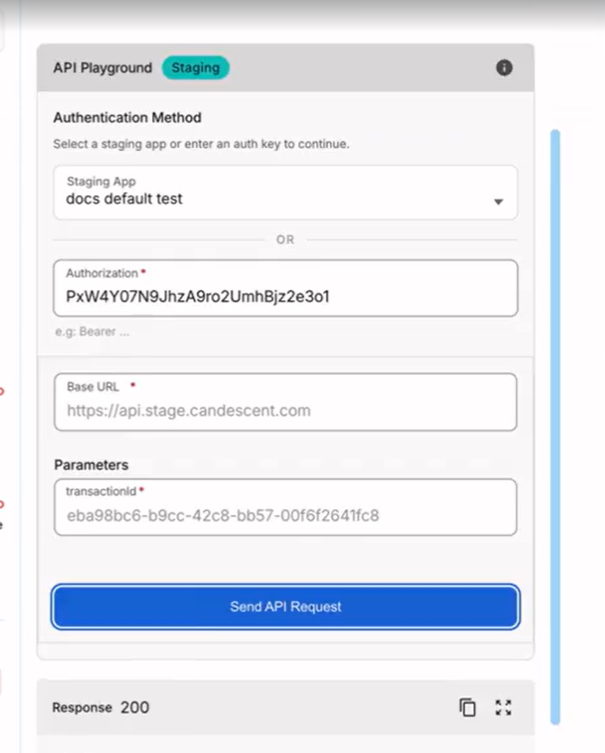
If the dropdown shows No apps returned or is empty, confirm you have at least one app created with the Stage environment in the Developer Console (see prerequisites above).
3.4 Fill In Request Details
Complete any required path parameters, query parameters, headers, or request body fields shown on the endpoint page.
3.5 Send the Request
Click Send API Request. The Playground displays:
- The HTTP status code and response time.
- The response body (formatted JSON).
- Response headers (expandable).
4. Troubleshooting
| Symptom | What to check |
|---|---|
| You need to sign in to test APIs using a staging app. | Click Sign In and complete SSO, or manually paste an auth key. |
| Staging App dropdown is empty or disabled | Confirm you are signed in and have at least one Stage app in the Developer Console. |
| Sign in or set an auth key before choosing an app. | Sign in or enter a Stage bearer token in the Authorization field before selecting an app. |
Request fails with 401 Unauthorized | Your token may have expired. Reselect the Staging App, or paste a fresh Stage auth key. |
| Request fails with other errors | Confirm the app has the target endpoint enabled under Connected APIs in the Developer Console. |
Next Steps
- Managing Applications and API Credentials: Create a Stage app and generate keys.
- API Categories Overview: Browse available API categories.
- API Reference: Try requests live using the API Playground.